A good widget saves you the search. You glance at your Home Screen or Lock Screen and instantly know what’s on today or how much is left this month. No need to open an app. That’s exactly how I build the widgets in my apps: small, calm and with the one piece of information that helps you right now.
Here’s which widgets there are, what they’re good for and how to set them up in a few seconds.
iFocus Plus: your day at a glance
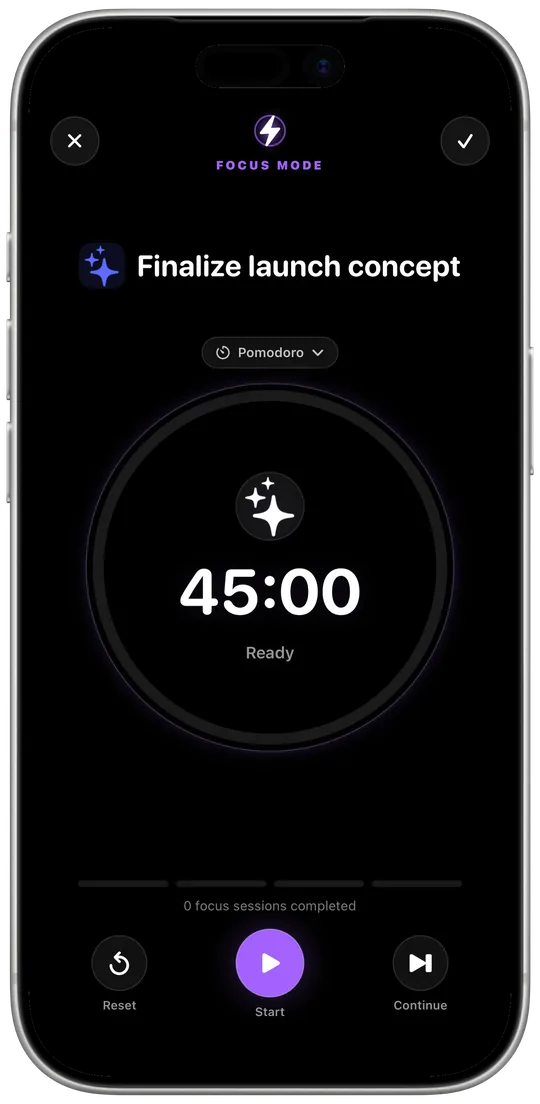
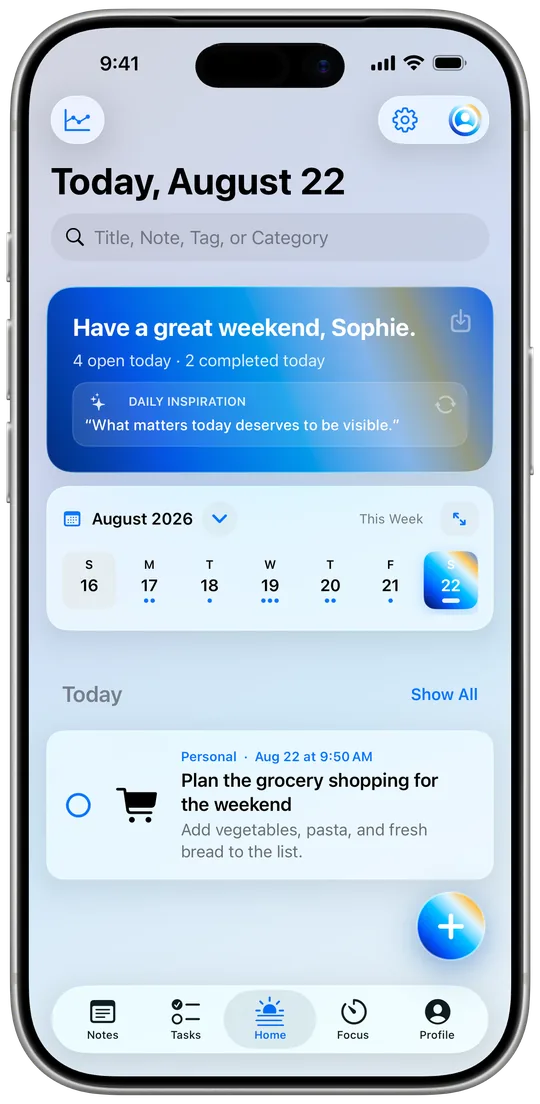
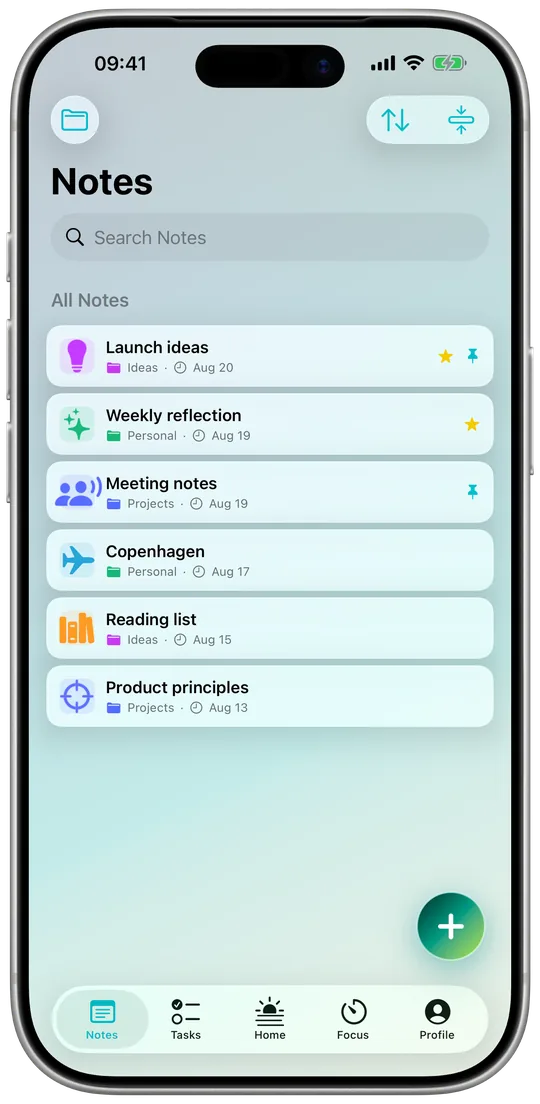
iFocus Plus has widgets for Today, To-dos and Notes. You can put them on your Home Screen and on your Lock Screen, with To-dos and Notes in every size since version 1.2. So in the morning you see what’s coming up without tapping through apps first. New in 1.2 is the Focus Timer widget: you start, pause and stop Pomodoro or stopwatch right from your Home Screen.
My tip: put “Today” on your Home Screen and a compact view on your Lock Screen. Then your plan is there whenever you pick up your iPhone.
Kassio: know what’s still left
The Kassio widget shows your remaining budget and your amount per day – on your Home Screen and Lock Screen. And it has a button that takes you straight to quick entry. Just paid? One tap, amount, category, done.
By the way, you can also log expenses via Siri or Shortcuts. Your data stays on your device.
New: Prismday, Verso and GemDot
Prismday is now on the App Store with interactive widgets, Control Center support and a focus timer on the Lock Screen and in the Dynamic Island.
Verso is now on the App Store. It has widgets in every size, from small to extra large, bilingual too: quote of the day, random, your favorites or your own words. Plus rectangular, circular and inline widgets for the Lock Screen and controls for Control Center. Your own theme comes along into the widget.
GemDot has three widgets since version 1.2: Gem of the Day, Check Off and Streak. You check off your habits right in the widget on your Home Screen, and you can see your gem and your streak on your Lock Screen too. You can also check off habits with Siri and Shortcuts.
How to add a widget to your Home Screen
- Touch and hold an empty area of your Home Screen until the apps jiggle.
- Tap “Edit” at the top, then “Add Widget”.
- Find the app, for example iFocus Plus or Kassio, and choose the widget and its size.
- Tap “Add Widget” and move it wherever you like.
And to your Lock Screen
- Touch and hold the Lock Screen until “Customize” appears, then tap it.
- Choose “Lock Screen” and tap the widget area.
- Find the app and tap the widget you want.
One small note: anything on your Lock Screen can be seen without unlocking. So take a second to decide what you want to show there.
If a widget stays empty
Open the app once so it can provide its data. If iOS still doesn’t refresh the view, remove the widget and add it again. And if that doesn’t help either, just write to me. I’ll help you personally.



 Dom RealmPrivacy8 min read